AI Email Organizers:
The complete guide
to taming your inbox.
An AI email organizer is a tool that automatically sorts, labels, and prioritizes incoming email so important messages surface first and noise gets archived. This guide covers how these tools work, how the leading options compare, and what to check before connecting one to your inbox.
Three problems they solve
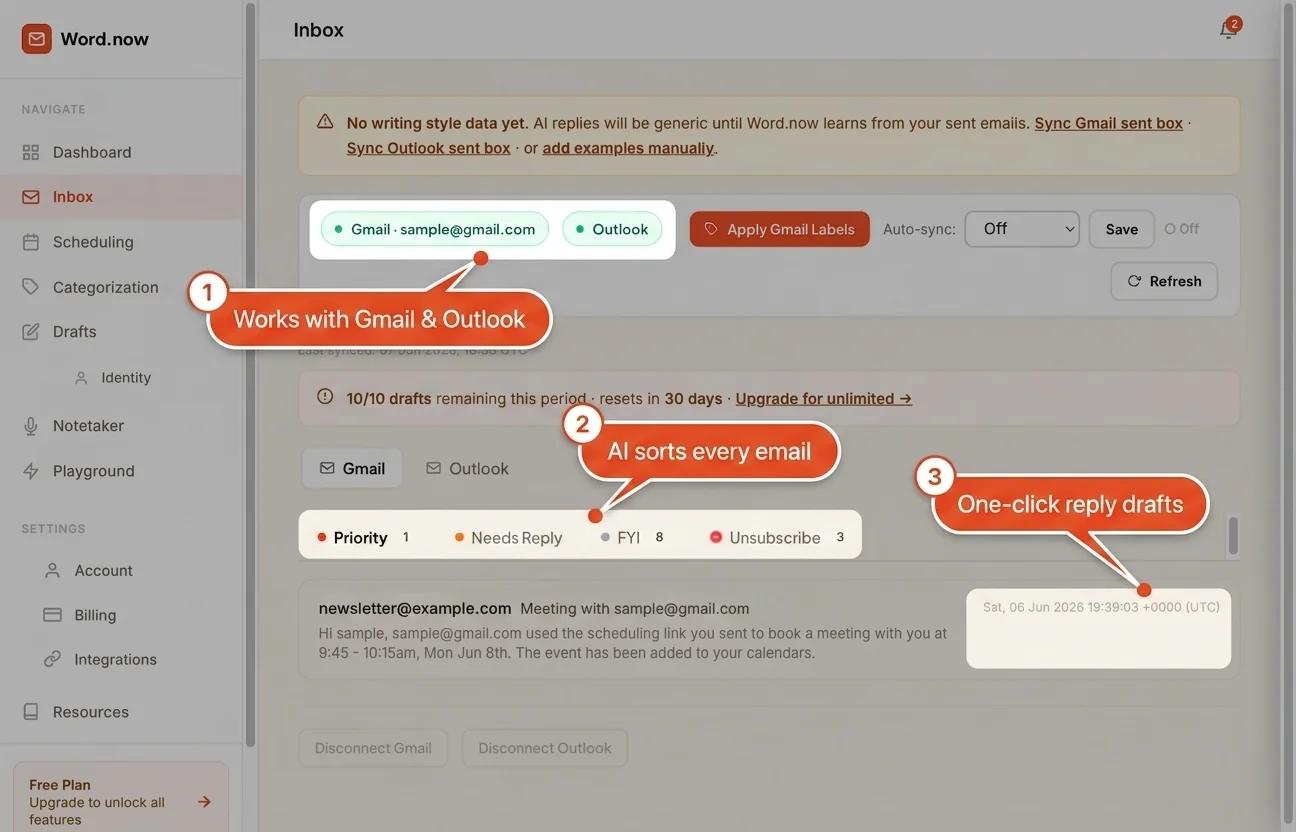
They sort and label every email
Instead of a flat list of everything, AI organizers read incoming email and apply intelligent categories - Urgent, FYI, newsletter, notification - So the view you open is already triaged. No manual rules needed.

They filter out the noise
Newsletters, marketing, platform notifications, and automated alerts don't belong in your priority view. Organizers detect these and remove them from your primary focus - Reducing the volume you actually process by 40–60%.
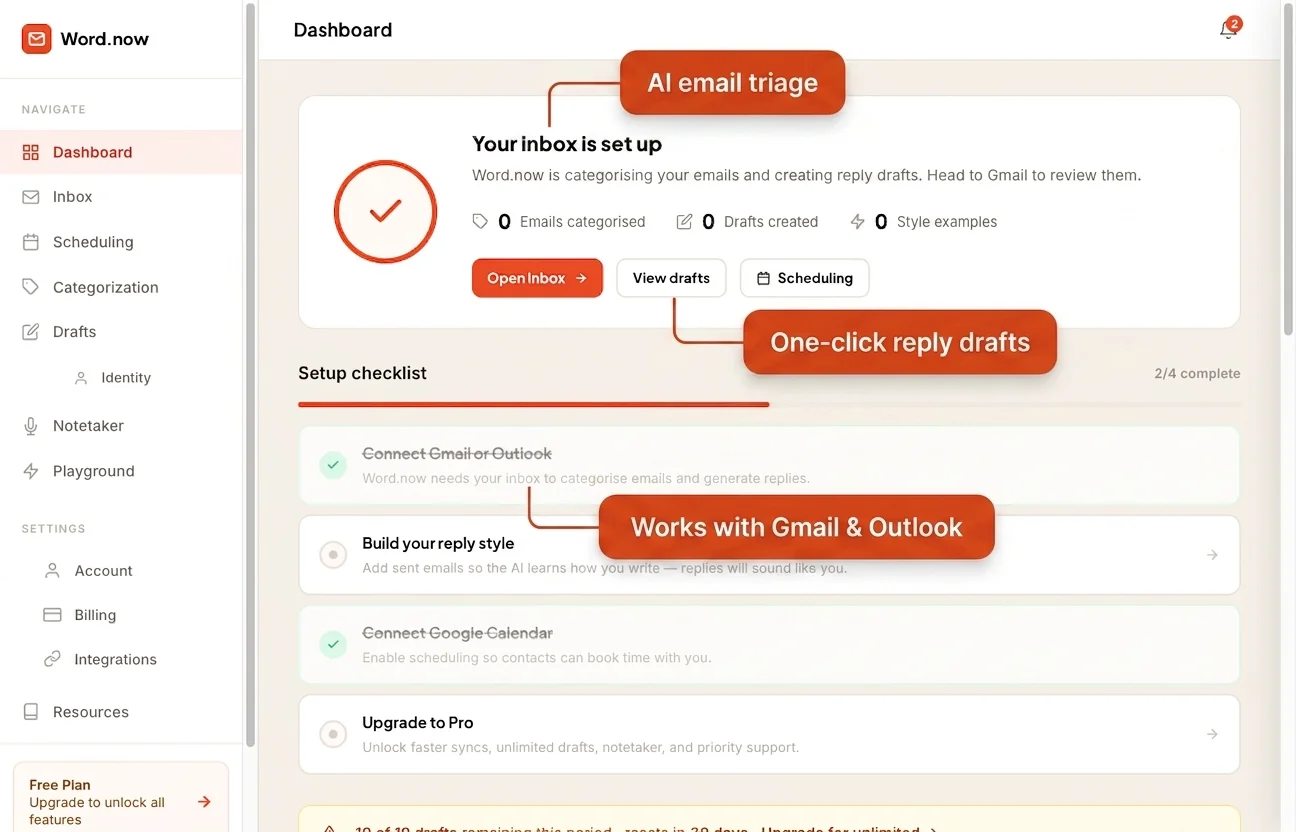
They surface what needs your attention
The emails that require a real response rise to the top. Emails from important contacts, threads you are part of, and messages with clear action items all get surfaced - While low-priority items are visible but out of the way.
This guide covers what these tools actually do, how built-in tools compare to dedicated services, when simple inbox rules are enough, what to check on privacy before connecting anything, and one important distinction: organizers handle incoming noise, but if your bottleneck is the time it takes to write replies, that is a different problem. See also: AI email organizer overview or best AI email assistants compared.
What an AI email organizer actually does
An AI email organizer is not the same as an AI email writer. It does not generate text. It processes your incoming email, applies learned sorting logic, and changes how messages appear in your inbox. The output is not a draft - it is a differently arranged view of your messages.
Built-in tools vs dedicated AI organizers
You may already have basic organization features in Gmail or Outlook without realizing it. The question is whether what they offer is enough, or whether a dedicated service like SaneBox, Shortwave, or Fyxer is worth the additional cost and the trade-off in privacy and inbox access.
| Feature | Gmail Priority Inbox | Outlook Focused Inbox | Dedicated tool (e.g. SaneBox) | Word.now |
|---|---|---|---|---|
| Priority sorting | Basic - based on open/reply history | Basic - two-tab view, limited ML | Advanced - multi-folder sorting, trains on explicit feedback | Not an organizer - see note below |
| Newsletter filtering | Promotions tab (imprecise) | Limited - primarily manual rules | Yes - dedicated newsletter detection | Not applicable |
| Snooze / remind | Yes (native Gmail feature) | Yes (Outlook built-in) | Yes - with ML-suggested snooze times | Not applicable |
| Sender importance learning | Passive - limited control | Passive - limited control | Explicit feedback supported | Not applicable |
| Digest summaries | No | No | Yes - daily and weekly digest | No |
| Additional cost | Free (included in Gmail) | Free (included in Outlook) | $7-24/mo depending on tier | Free tool available - different category |
| Inbox access required | Full (Google) | Full (Microsoft) | Full read access | No inbox access needed |
Note: Word.now is an AI reply generator, not an inbox organizer. It is included here for context because people searching for organizer tools sometimes need a reply tool instead. If your problem is writing replies rather than sorting incoming mail, try the free reply generator.
Pricing verified June 2026. Check vendor sites for current plans.
Setting up inbox rules vs using an AI organizer
Inbox rules (filters in Gmail, rules in Outlook) are free, simple to set up, and require no third-party access. They work well when your sorting needs are predictable. An AI organizer adds value when your inbox volume is high enough that the unpredictability of incoming mail defeats a manual rules approach.
Use this decision guide based on your daily email volume:
-
1Under 50 emails per day. Inbox rules are almost certainly enough. You can manually filter newsletters, label senders, and route notifications to folders. The overhead of a dedicated AI service is not justified at this volume.
Recommendation: use inbox rules -
250 to 150 emails per day. Rules handle the predictable senders but struggle with new contacts, project-specific threads, and volume spikes. A hybrid approach works well here: keep your existing rules and add a tool like Gmail Priority Inbox or Outlook Focused Inbox to handle the rest without additional cost.
Recommendation: rules plus built-in AI features -
3Over 150 emails per day. At this volume, the unpredictability of who is sending what makes rules brittle and time-consuming to maintain. A dedicated AI organizer that learns from your actual behavior outperforms a manually maintained rule set. The cost is usually justified by the time saved.
Recommendation: dedicated AI organizer
What to check before connecting an inbox organizer
Inbox organizers require full read access to your email to function. That is a significant permission grant. Before connecting any tool to a Gmail or Outlook account, work through this checklist. Full guide: Is AI email safe?
-
Check what permissions it requests. Most organizers need read access. Some also request write access to apply labels or archive messages. Read the OAuth permission screen before clicking "Allow" and note every scope being granted.
-
Find the data retention policy. Discover whether the service stores copies of your email content, for how long, and whether you can request permanent deletion. Some services retain processed content indefinitely.
-
Look for a training opt-out. Some services use email content to improve their AI models. Look for an opt-out setting before use. If no opt-out exists, assume your content may be used for training.
-
Check your employer's policy for work email. Most organizations have not explicitly approved connecting work email to third-party tools. If you are connecting a work account, get written approval from IT or your legal team first.
-
Understand the free tier limits. Many organizers offer a free plan with capped features or a time-limited trial. Know what happens to your inbox when the trial ends - some services revert cleanly, others require manual cleanup of the labels and folders they created.
-
Know how to cancel and revoke access cleanly. Before connecting, confirm you know exactly how to remove the tool's access from your Gmail or Outlook settings. Revocation should take less than 60 seconds. If the instructions are not clearly documented, that is a warning sign.
The privacy trade-off
Every AI email organizer trades inbox access for organization benefit. Understanding exactly what kind of access you are granting - and whether it is proportionate to what you are getting - is the only way to make that trade knowingly.
Read access means the tool can see your email content. Write access means it can change your labels, archive messages, or in some cases send email on your behalf. Most organizers need read access to classify messages and write access to apply labels or move mail to folders. What they should not need is permission to send email - if an organizer requests send permission, ask specifically why before granting it.
A common pattern is that tools request the broadest permission scope available rather than the narrowest one needed. When you see a permission screen listing "manage and send email" for a tool that only claims to organize your inbox, that is a mismatch worth questioning. You can often find more specific permission scopes by checking the tool's documentation rather than accepting the default OAuth scope it requests.
For more detail on what to look for: Is AI email safe? A plain-English guide to inbox permissions.
Email organizer vs AI reply generator - different problems
Reduces incoming noise
Sorts, labels, and prioritizes the email that arrives in your inbox. Your bottleneck is too much email arriving and not enough time to triage it. The tool works on the inbox before you ever open it.
Reduces outgoing time
Generates drafts for the replies you need to send. Your bottleneck is the time it takes to formulate and write responses once you have already identified what needs a reply.
Both types of tools are genuinely useful. But they solve different bottlenecks and conflating them leads to subscribing to the wrong one. If you can triage your inbox in under 10 minutes but then spend an hour writing replies to the emails you have identified, an organizer will not help you. If you open your inbox and immediately feel overwhelmed by volume, a reply generator will not help you either.
Many people have both problems. If writing replies is your main constraint, try the free reply generator first - it requires no inbox access and takes less than a minute to test. See also: how to reduce email overload and Word.now vs SaneBox compared.
Frequently asked questions about AI email organizers
If your problem is writing replies,
not sorting them.
Try the free email reply generator. No inbox access. No account required. Get a draft in under 30 seconds.