AI email reply drafts that sound
exactly like you
Word.now learns your writing style from your sent emails, then generates full reply drafts - Saved directly into your Gmail or Outlook Drafts folder - That match your tone, length, and sign-off.
What AI reply drafts do for your inbox
Style learning from sent emails
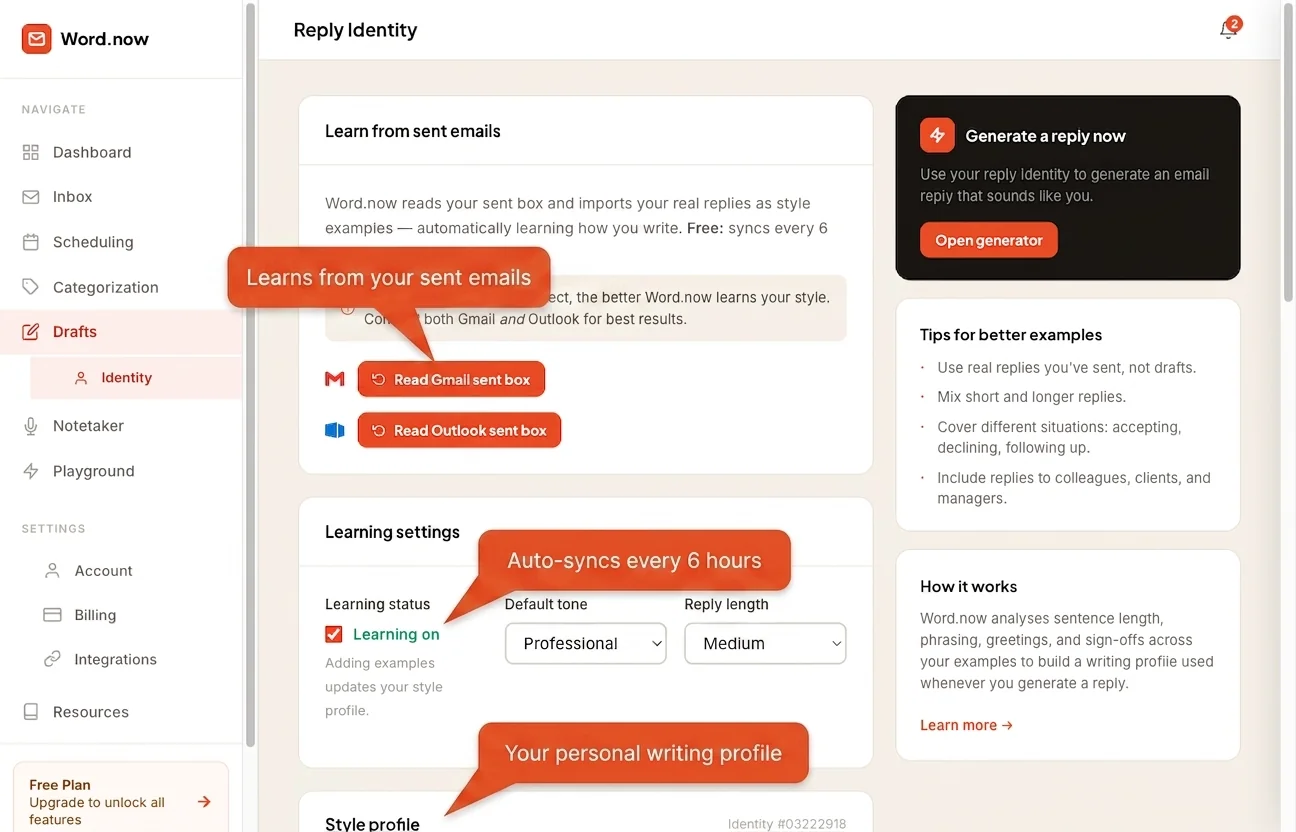
Connect Gmail or Outlook and Word.now reads your Sent folder to build a reply identity - A profile of your tone, formality, warmth, and typical sign-offs. Curious about the mechanics? See how AI reply assistants work behind the scenes.
Full draft saved to your inbox
Generated drafts are saved directly to your Gmail Drafts or Outlook Drafts folder. Open your email client, edit if needed, and send - No copy-pasting.
Add your own examples
Upload specific emails you're proud of as style examples. Word.now weights these heavily so your most distinctive phrases and structures appear in generated drafts.
Works for Gmail and Outlook
One reply identity profile applies across both email providers. Whether you're replying via Gmail or Outlook, the draft tone is consistent and sounds like you.
Regenerate at any time
Add more sent emails, delete poor examples, and regenerate your style profile whenever your writing evolves. The AI adapts with you.
Reply in context
When generating a draft from your inbox, Word.now reads the full email thread before writing - So the draft addresses what was actually said, not a generic summary.
Your writing style, not ChatGPT's
Most AI email tools generate replies that are obviously AI-written - Formal, verbose, and stilted. Word.now builds a personal reply identity from your actual sent emails, so generated drafts match your real voice.
The identity captures formality level, warmth, directness, sentence length, and the specific phrases and sign-offs you use.
- Reads up to 50 sent emails to build your profile
- Scores formality, warmth, and directness on 0–100 scales
- Captures your typical sign-off phrases
- You can edit, add, or delete training examples
Generate a reply right now - No account needed
Paste any email into the free reply generator and get a complete draft back in seconds. No sign-up, no inbox access, no credit card.
When you're ready to connect your inbox and start saving drafts directly to Gmail or Outlook, create an account and link your email provider.
- Free tool: 10 drafts per day, no account required
- Free account: AI inbox triage + 200 drafts/day
- Pro: priority-speed drafts + full scheduling features via the AI scheduling assistant
- Compare all plans →
AI reply draft questions
How AI reply drafts work
-
1
Connect Gmail or Outlook
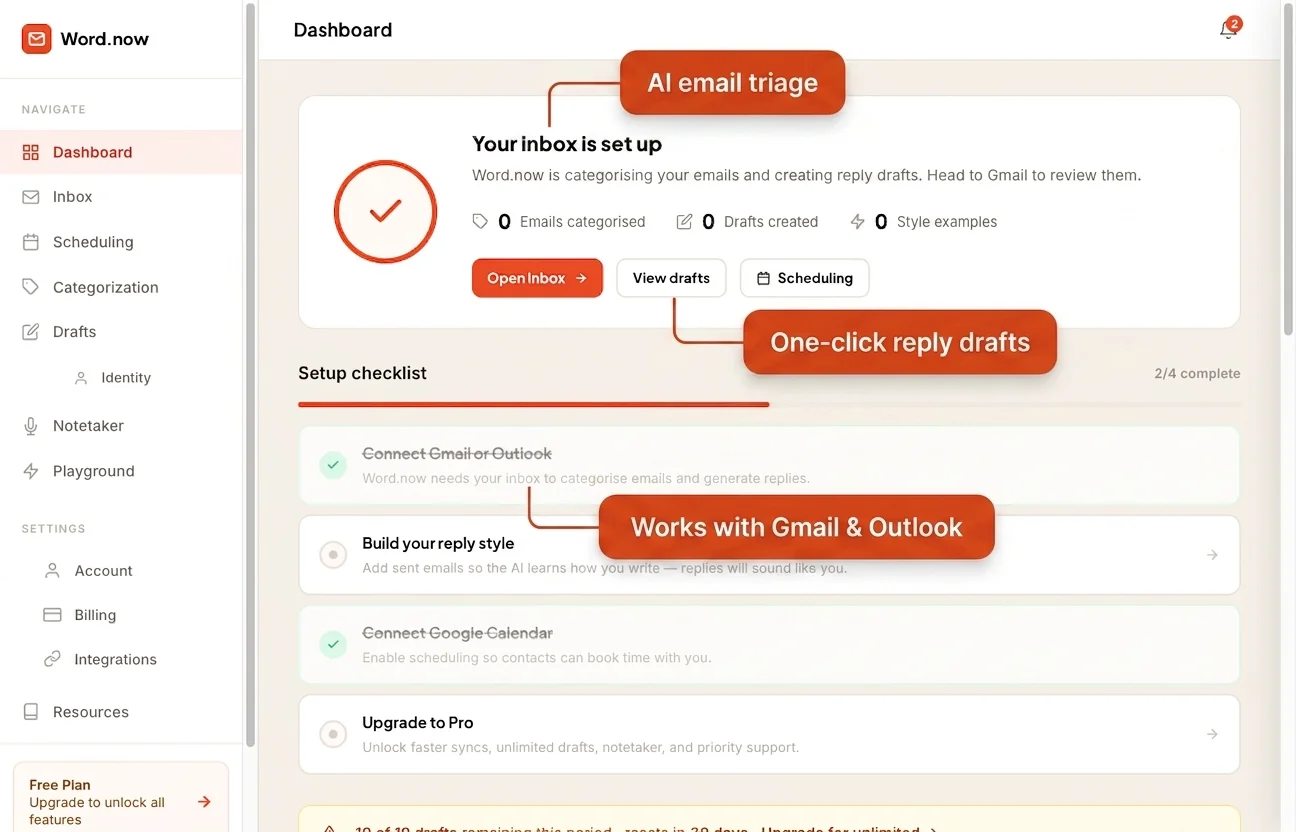
Word.now reads your Sent folder - Typically 5 to 10 recent emails. It analyzes your vocabulary, sentence length, how you open emails, how you close them, and the level of formality you use with different contacts. No emails are stored beyond the analysis.
-
2
Word.now builds your reply identity
The whole process takes under 60 seconds. Word.now captures your formality level, typical email length, phrases you use often, phrases you avoid, and your signature style. That profile is used on every draft going forward - Not a generic template.
-
3
Open draft replies in your Drafts folder
When an email arrives that needs a reply, Word.now generates a draft in your voice and saves it directly to your Gmail or Outlook Drafts folder. No separate app to open, no copy-pasting - Just a ready-to-send reply waiting in the place you already work.
Start writing replies in your voice.
Connect Gmail or Outlook and generate drafts in seconds. Free forever, no card needed.