Free scheduling assist tool - Find free slots
and draft the meeting email
Connect your calendar, describe the meeting, and AI finds your free slots and drafts a ready-to-send scheduling email - In seconds.

The scheduling back-and-forth ends here.
Scheduling a single meeting burns an average of 17 minutes in email ping-pong. Multiply that across your week and you lose hours to finding slots and drafting "how about Tuesday at 3?" emails. Word.now eliminates that entirely - Use the Email Reply Generator to handle the rest of your inbox while you're at it.
- AI reads your actual calendar - No double-booking
- Drafts a polished scheduling email with real slots
- Works with Google Calendar and Outlook
- Ready in under 10 seconds from start to send
Three steps to a
perfectly scheduled meeting
No manual slot-checking. No copy-pasting from your calendar. Just describe the meeting and Word.now handles the rest.
Connect your calendar
Describe the meeting
Get free slots instantly
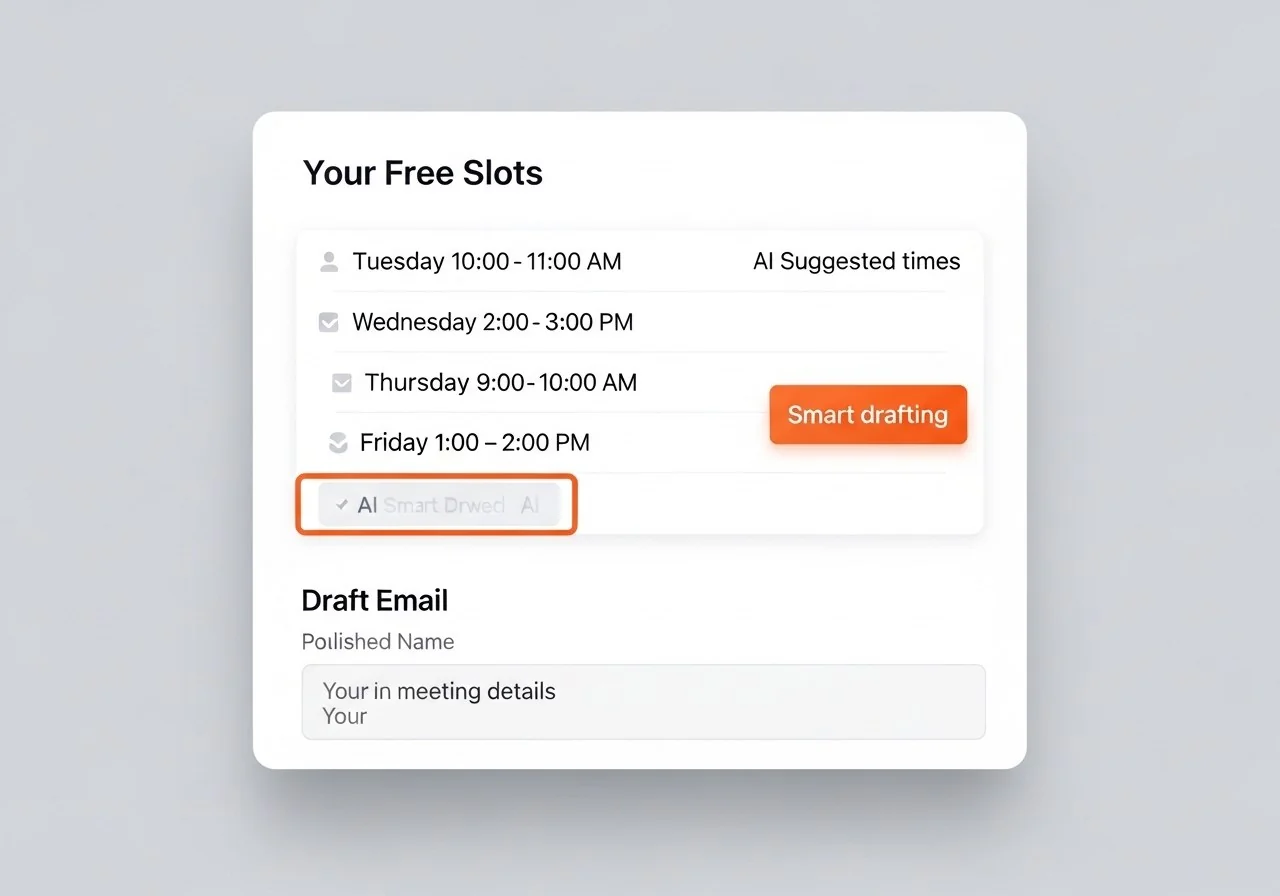
Real calendar slots. Real scheduling email.
Ready to send.
The result isn't a vague suggestion - It's a list of your actual free windows matched to the duration you need, plus a professional email draft that names the slots, explains the meeting purpose, and asks the recipient to pick a time. The draft is shaped by your Reply Identity so it sounds like you wrote it.
- Shows multiple real slots from your live calendar
- Email is personalized to your meeting context
- One-click copy - Paste directly into Gmail or Outlook
- Edit anything before you send
Connect your calendar in 60 seconds
No complex setup. OAuth sign-in takes under a minute - Then you're ready to schedule your first meeting the smart way.
Everything you need to know
What is the scheduling assist tool?
The scheduling assist tool connects to your calendar and helps you reply to meeting requests with real availability. Instead of writing three emails asking "does Tuesday work?", you get a draft with open slots already checked. For the broader category overview, see the best AI scheduling tools compared.
Word.now's scheduling tool reads your Google Calendar or Outlook Calendar, identifies open slots that match your working hours, and drafts a scheduling email with three proposed times written in your own style. You paste it, send it, done. After the meeting itself, use our AI meeting notes generator to capture decisions and action items while they're fresh.
Why use scheduling assist instead of a standard booking page?
Booking pages like Calendly are great for inbound scheduling - When someone wants to book time with you. But a lot of scheduling is outbound: you need to reach out and suggest a time. That's where scheduling assist is faster. It writes the email for you instead of asking the other person to navigate a calendar widget.
Does it work with Gmail and Outlook?
Yes - Word.now connects to both Google Calendar and Outlook Calendar via OAuth. Your free time is read securely, no calendar events are stored, and the drafted email goes straight into your compose window.
This tool drafts one email. Word.now Scheduling handles every meeting automatically.
Get a personal booking link that shows your real availability, blocks time on your calendar automatically, and sends confirmation emails - No back-and-forth, ever.
- Permanent booking link at your own URL
- Syncs with Google Calendar and Outlook - No double-booking
- Confirmation emails sent automatically to both parties
Free forever
Your next meeting,
scheduled in 10 seconds
Free account, connect in 60 seconds, and never send another "when are you free?" email again.
No credit card · Read-only calendar access · Cancel any time